
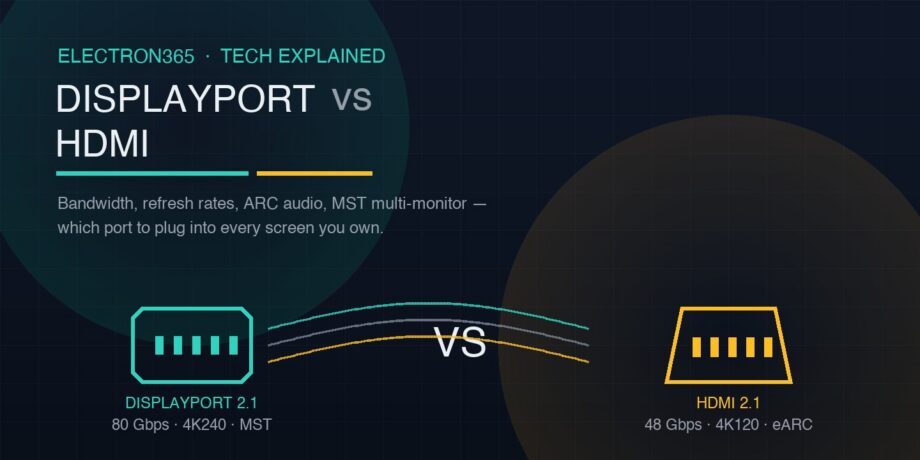
Look at the back of any monitor, dock, GPU, or TV and you’ll meet the same two rectangles: DisplayPort and HDMI. They’re close enough in shape that people plug into whichever cable is closer, then wonder why the 144Hz panel is stuck at 60Hz, why the soundbar has no sound, or why the second monitor mirrors the first instead of extending. The ports look like siblings; electrically they’re built for different rooms — DisplayPort grew up in the PC/monitor world, HDMI grew up in the living room — and every feature they carry reflects that split.
This guide compares the two standards honestly: real bandwidth by version, what each does that the other physically cannot, where gaming and multi-monitor setups push them, and the USB-C twist that quietly makes DisplayPort the most common video port you never see. By the end you’ll know which port to use for every screen you own — and which cable to buy so it doesn’t become the bottleneck.
The Short Answer
DisplayPort is the PC port; HDMI is the everything port. If you’re connecting a computer to a monitor — especially above 60Hz, or more than one screen — DisplayPort is engineered for exactly that job: higher peak bandwidth (DP 2.1 hits 80 Gbps to HDMI 2.1’s 48), Multi-Stream Transport for daisy-chaining displays, and a locking connector that doesn’t sag in a heavy cable. If you’re connecting anything to a TV, projector, soundbar, or console, HDMI is the only port that speaks that ecosystem: ARC/eARC audio return, CEC remote control, and the HDMI 2.1 feature set (4K120, VRR, ALLM) that PlayStation and Xbox require.
Neither is “better” in the abstract. The failure mode is using the wrong tool for one specific job — gaming at 4K120 through an HDMI 1.4 port, or expecting a TV’s ARC to work over DisplayPort, which it never will.
The Versions Table That Actually Matters
Both standards have been revised repeatedly, and version numbers are where 90% of confusion lives. These are the tiers you’ll actually meet on 2026 shelves:
| Standard | Raw bandwidth | Usable bandwidth | Signature modes |
|---|---|---|---|
| HDMI 1.4 | 10.2 Gbps | 8.2 Gbps | 4K30, 1080p60 |
| HDMI 2.0 | 18 Gbps | 14.4 Gbps | 4K60, 1440p144 |
| HDMI 2.1 | 48 Gbps (FRL) | 42.7 Gbps | 4K120, 8K60 (DSC), VRR, ALLM, eARC |
| DisplayPort 1.2 | 21.6 Gbps | 17.3 Gbps | 4K60, dual 1080p via MST |
| DisplayPort 1.4 | 32.4 Gbps | 25.9 Gbps | 4K120 / 8K60 with DSC |
| DisplayPort 2.1 | 80 Gbps (UHBR20) | 77.6 Gbps | 4K240, 8K85+, dual 8K heads |
One licensing wrinkle worth knowing before you shop: the HDMI Forum folded the older 2.0 feature set into the 2.1 specification, so a device can legally print “HDMI 2.1” while only shipping 18 Gbps of old-style TMDS bandwidth. The feature to check for is FRL (Fixed Rate Link) — no FRL, no 4K120, no matter what the box says. DisplayPort version labels have no equivalent games.
Bandwidth, Translated Into Modes You Can See
Raw gigabits mean nothing at the couch. Here’s what each tier actually puts on screen — and where each one runs out:
| You want to run | Approx. bandwidth | HDMI that works | DP that works |
|---|---|---|---|
| 1080p 60Hz | ~4 Gbps | 1.4+ | Any |
| 1440p 144Hz | ~14 Gbps | 2.0+ (2.1 for 240Hz) | 1.2+ |
| 4K 60Hz | ~13–16 Gbps | 2.0+ | 1.2+ |
| 4K 120Hz | ~26–40 Gbps | 2.1 only | 1.4 (DSC) / 2.1 native |
| 4K 240Hz | ~53+ Gbps | — | 2.1 only |
| 8K 60Hz | ~52+ Gbps | 2.1 with DSC/4:2:0 | 2.1, or 1.4 with DSC |
Read the 4K120 row twice, because it’s the format that pays the mortgage in 2026: a 4K 120Hz screen wants more than HDMI 2.0 and DP 1.4-without-compression can deliver. DisplayPort 1.4 crosses the line only because DSC (Display Stream Compression, visually lossless in VESA’s testing) squeezes the stream; HDMI 2.1 crosses it natively with FRL. If you game at 4K120 or ultrawide 144Hz+, the port version on both ends — GPU and display — is a hard gate, and the cable is the third gate people forget.
What HDMI Does That DisplayPort Can’t
ARC and eARC (Audio Return Channel). The living-room killer feature: the same HDMI cable that sends video to the TV carries audio back from the TV’s apps to a soundbar or receiver. Plain ARC moves about 1 Mbps — enough for compressed 5.1. eARC (HDMI 2.1) moves 37 Mbps, enough for lossless Dolby Atmos and DTS:X. DisplayPort carries audio fine in the forward direction, but it has no return channel at all — plug a soundbar into a DP-fed monitor and you’re using its aux jack.
CEC (Consumer Electronics Control). One remote to rule the rack: TV on, soundbar on, console wakes, input switches. Every HDMI device speaks it; nothing in the DP world does. In practice CEC plus ARC is why “just use HDMI” is correct advice for any TV-adjacent setup.
Console compatibility. PlayStation 5 (and PS5 Pro) and Xbox Series X|S output exclusively over HDMI 2.1 — there is no DisplayPort on any console. Our PS5 Pro ports explainer covers what the front and back of that machine can actually drive, and why 4K120 VRR demands an HDMI 2.1 chain end to end.
What DisplayPort Does That HDMI Can’t
MST (Multi-Stream Transport). One DP port can carry multiple independent video streams: daisy-chain monitor to monitor (DisplayPort in + DisplayPort out), or split through an MST hub to two, three, even four screens. HDMI is strictly one stream per cable — the reason a “dual HDMI” dock needs two internal converters, while a Thunderbolt/DP chain just multiplies. If you’re building a multi-monitor desk, MST and Thunderbolt daisy-chaining are the DisplayPort family’s home turf — the trade-offs between that approach and a dual-HDMI dock are laid out in our dual-monitor docking station guide.
More headroom per dollar on monitors. High-refresh 1440p and 4K monitors overwhelmingly ship DP first: a DP 1.4 input is cheaper to license and faster than HDMI 2.0, and DP 2.1 (80 Gbps) outguns every HDMI tier on paper. AMD’s newest GPUs already carry DP 2.1; monitors that use it can run 4K240 on a single port with zero compression.
A connector that locks. Trivial, and genuinely nice: the DP plug’s latch stays seated under cable weight and desk vibration. HDMI’s friction fit is fine for a TV that’s never touched; on a swiveling monitor arm it’s the reason screens go black when you nudge the desk.
Gaming: Where Each Port Wins
Console gaming is HDMI, full stop. PS5, PS5 Pro, Xbox Series X|S: HDMI 2.1, and the headline features (4K120, VRR, ALLM auto-low-latency) only engage over an FRL link with a certified 48 Gbps cable. The Switch is the one console that docks over USB-C and converts to HDMI in the dock — our Switch 2 dock guide covers what that HDMI port will and won’t do at 4K.
PC gaming: use DP on the desk, HDMI on the TV. A PC hooked to a high-refresh monitor should default to DisplayPort — that’s what the port is for, and adaptive sync (Adaptive-Sync/G-Sync/FreeSync) is native there. The same PC dragged into the living room should use HDMI 2.1, which carries 4K120 to the TV and speaks CEC with it. Handhelds, once again, are secretly DisplayPort: a Steam Deck or ROG Ally outputs DP Alt Mode over USB-C and converts to HDMI inside the dock — details in the Steam Deck dock guide.
VRR works on both now. The old “G-Sync needs DisplayPort” rule expired: HDMI 2.1 VRR and HDMI-native FreeSync cover the living room, and consoles use them heavily. Buy for bandwidth and features, not for sync-fear.
The Hidden Third Player: DisplayPort Alt Mode Over USB-C
Here’s the twist that makes this debate bigger than two ports: every USB-C hub, dock, and adapter that outputs HDMI is secretly a DisplayPort device. USB-C’s Alternate Mode reassigns the connector’s high-speed lanes to carry native DisplayPort, and the hub converts DP to HDMI on a tiny chip before it leaves the box. That converter is why USB-C video gear varies so wildly in price and capability:
- Cheap hubs with HDMI 1.4-class converters: 4K at 30Hz, and everyone blames the hub brand instead of the silicon. Our 3-in-1 USB-C hub with PD100W + HDMI ($9.95) is honest about it — 4K30 on the HDMI, 100W passthrough, and a price that matches the chip inside.
- 4K60-class converters: the tier most laptops actually want. The Vention USB-C hub with 4K60 HDMI ($31.26) and the Swiss-army 8-in-1 USB-C hub ($9.07) sit here.
- Dual/multi-monitor USB-C docks: one DP Alt Mode stream, MST-split or dual-converted into two HDMI outputs — the architecture behind the Type-C dual-HDMI docking station ($40.75). Macs don’t do MST (Apple renders each external screen as its own stream), so on macOS a dual-HDMI dock carries two independent converters — which is exactly the Thunderbolt-vs-USB4 distinction our Thunderbolt 4 vs USB4 explainer untangles.
The bandwidth ceiling travels with the Alt Mode: USB-C can carry four DP 1.4 lanes (~26 Gbps usable), which is why even premium hubs top out around 4K60 per output unless they’re Thunderbolt/USB4 with DP 2.x. For phone/laptop-to-TV, the direct answer is a USB-C to HDMI 8K60 cable ($10.70) — one DP-to-HDMI 2.1 converter in a single cable, no hub required. Laptop-specific pairing notes are in the USB-C hub guide for MacBook, the MacBook Pro M4 ports guide, and the iPad Pro hub guide.
Cables: Where 4K120 Setups Quietly Fail
The port is only one gate of three. An HDMI 2.1 TV fed by an HDMI 2.1 GPU through an 18 Gbps “high speed” cable negotiates down to 4K60 — or shows snow, dropouts, and rainbow flicker at the worst moment. The rules:
- HDMI: for 4K120/8K, buy cable certified Ultra High Speed (the certification QR label is on the packaging). “High Speed” caps at 18 Gbps; “8K” without certification is a wish, not a rating.
- DisplayPort: look for DP8K / HBR3-rated cables for DP 1.4 DSC modes; for DP 2.1 the cable must be VESA-certified UHBR. Old DP cables from 2014 will link at reduced rates without telling you why.
- Length is bandwidth’s enemy. Past ~3m, active/optical cables are the reliable play for 48 Gbps; the same physics that frays charging cables bites video lines too — different mechanism, same lesson.
And one habit that prevents half of all “my monitor is stuck at 30Hz” support tickets: after any new connection, read the actual mode in the GPU control panel (NVIDIA/AMD/Windows display settings, or macOS Displays → hold Option to reveal “Override”). Cables and ports negotiate silently; the settings panel is the only place the truth is posted. Our USB 3.x vs USB4 speed guide covers the same silent-negotiation trap for data lines.
How to Choose in 10 Seconds
| Your situation | Use | Why |
|---|---|---|
| PC → high-refresh monitor (100Hz+) | DisplayPort | Native adaptive sync, MST, cheap high bandwidth |
| Anything → TV, projector, soundbar | HDMI | ARC/eARC + CEC only exist there |
| Console → anything | HDMI 2.1 | It’s the only port consoles have |
| Laptop/phone → TV | USB-C→HDMI cable | One converter, no dock needed |
| Laptop → two+ monitors | USB-C/TB4 dock | DP Alt Mode + MST/dual conversion |
| 4K120 or 4K240 on PC | HDMI 2.1 or DP 2.1 | Only tiers with the bandwidth |
FAQ
Is DisplayPort better than HDMI for gaming?
On a desk, usually yes — monitors pair DP with native adaptive sync and higher refresh ceilings, and DP 2.1 has nearly double HDMI 2.1’s bandwidth. On a TV or console, HDMI 2.1 is the only correct answer. “Better” depends on which room the screen is in.
Can I convert DisplayPort to HDMI (or the reverse)?
DP→HDMI is easy and cheap — every USB-C hub with HDMI does exactly this internally, and passive adapters work for DP++ ports. HDMI→DP requires an active (powered) converter and costs more; avoid it unless there’s truly no other port.
Does HDMI 2.1 work through an HDMI 2.0 port or cable?
No. The link negotiates to the weakest element: an 18 Gbps port or cable caps a 2.1 signal at 4K60 and disables FRL features (4K120, VRR over FRL). Every link in the chain — source port, cable, sink port — must be 2.1-class with a certified Ultra High Speed cable.
Why is my 4K monitor only showing 30Hz?
Nine times out of ten: an HDMI 1.4-class link (very common on cheap USB-C hubs) or a capped cable. Check the mode in your GPU control panel, then upgrade the weakest link — a 4K60-rated hub or an 8K HDMI cable usually fixes it instantly.
What is DisplayPort Alt Mode?
A USB-C mode that reassigns the connector’s data lanes to carry native DisplayPort. It’s how phones, laptops, handhelds, and tablets output video over USB-C — and why “USB-C to HDMI” anything is really a DP-to-HDMI converter in disguise.
Can I daisy-chain monitors over HDMI?
No — daisy-chaining needs DisplayPort MST (monitor with DP in/out) or Thunderbolt. HDMI carries exactly one stream per cable; multi-screen over HDMI means one cable (or one converter) per display.
The Bottom Line
DisplayPort and HDMI aren’t rivals so much as specialists assigned to different rooms: DP for the desk — high refresh, multi-monitor, locking connectors, 80 Gbps of headroom; HDMI for the living room — ARC/eARC audio, CEC control, and the console-native 2.1 feature set. Choose by screen, not by habit: USB-C to HDMI 8K60 cable ($10.70) for laptop-to-TV nights, a 4K60 USB-C hub ($31.26) for the desk bag, a dual-HDMI dock ($40.75) for the two-screen workday, and DisplayPort 1.4+ straight to the gaming monitor whenever the port exists. Verify the negotiated mode once, buy certified cables for anything above 4K60, and neither port will surprise you again.