
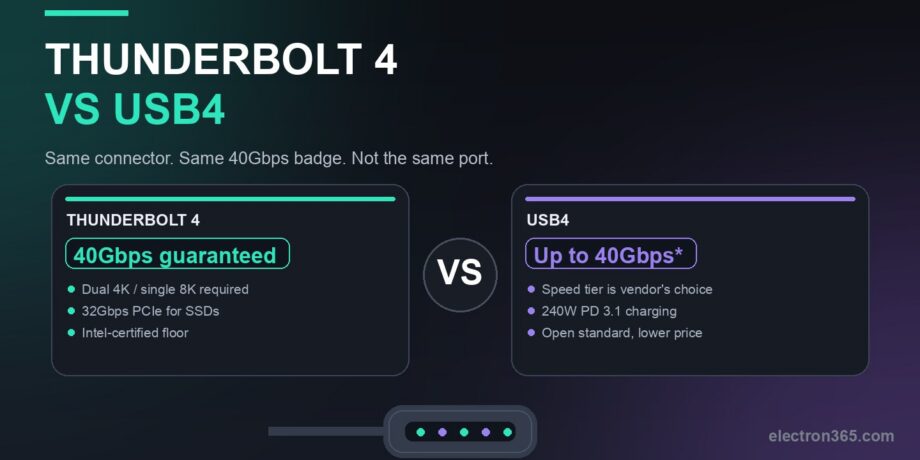
Both use the same oval connector. Both get advertised with the same “40Gbps” badge. Yet Thunderbolt 4 and USB4 are not the same thing — and in 2026 the gap between the label on the box and what the port actually does is where buyers lose the most money. One “USB4” port on a budget laptop might move files at half the speed of another USB4 port three feet away, while a Thunderbolt 4 port that looks identical will run two 4K monitors and a fast NVMe enclosure without breaking a sweat.
The good news: the difference is easy to understand once you know what each spec guarantees versus what it merely permits. That’s the whole game. This guide breaks down both standards in plain English, shows you what a cable and a port are really doing, and helps you figure out which one your setup actually needs — before you buy a dock that can’t do what you assumed it could.
The Short Answer
Thunderbolt 4 is a guarantee; USB4 is a permission slip. Every certified Thunderbolt 4 port must hit 40Gbps, support two 4K displays (or one 8K), tunnel PCIe storage traffic at full speed, and work with every Thunderbolt device before it. USB4 allows all of that — but also allows manufacturers to ship ports at 20Gbps with no display output and no PCIe, and still legally call them USB4. If you want certainty, look for the Thunderbolt 4 logo or a USB4 port explicitly rated “40Gbps” in the spec sheet.
Same Port, Different Promises
The two standards are relatives, not rivals. When Intel opened up the Thunderbolt 3 protocol, the USB Implementers Forum used it as the foundation for USB4 — which is why both standards tunnel DisplayPort and PCIe traffic over the same USB-C connector, and why Thunderbolt 4 devices are required to be USB4-compatible. We covered the USB speed-generation family tree in our USB 3.0 vs 3.2 vs USB4 explainer; the short version is that USB4 absorbed Thunderbolt’s tunneling trick and made it a mainstream, royalty-free standard.
So think of it this way: USB4 is the open standard that anyone can build to, at whatever speed tier they choose. Thunderbolt 4 is Intel’s certification on top of that stack — a badge that says “this port does everything, minimum.” Neither is “newer” than the other in a way that matters to your desk; they shipped together and coexist on the same machines. Apple’s MacBook Pro ports, for example, are simultaneously Thunderbolt 4 and USB4 — our MacBook Pro M4 ports guide shows how that works in practice.
Thunderbolt 4 vs USB4: The Spec Table
| Thunderbolt 4 | USB4 | |
|---|---|---|
| Connector | USB-C only | USB-C only |
| Max signaling speed | 40Gbps (guaranteed) | 40Gbps (optional — 20Gbps ports exist) |
| Min PCIe (SSD) throughput | 32Gbps required | PCIe tunneling optional; often absent or slower |
| Displays | Two 4K60 or one 8K required | DisplayPort tunneling optional; count/resolution not mandated |
| Charging | USB PD up to 100W | USB PD up to 100W (240W with PD 3.1 EPR) |
| Daisy-chain | Up to 6 devices | Up to 4 devices (rarely implemented beyond docks) |
| Certification | Intel-certified, logo-protected | Self-declared by manufacturer |
| Typical price premium | Docks $150+; ports on premium laptops | Hubs from ~$20; ports on mid-range laptops |
One row matters more than the rest: “optional” is the entire USB4 story. Every Thunderbolt 4 weakness is shared with USB4; every USB4 strength is available to Thunderbolt 4.
What Thunderbolt 4 Guarantees
Certification is what you’re paying for. To wear the Thunderbolt 4 logo, a port must:
- Run at 40Gbps, full stop. No 20Gbps “entry” Thunderbolt 4 exists.
- Move storage at a minimum 32Gbps. Thunderbolt 3 allowed vendors to ship 16Gbps PCIe — half the bandwidth, same logo. TB4 closed that loophole, which is why TB4 NVMe enclosures saturate near ~3,000 MB/s.
- Drive two 4K60 displays or one 8K display. Some TB3 laptops supported a single 4K panel only; TB4 makes dual-display support mandatory for the host.
- Wake the computer from sleep via connected Thunderbolt devices like keyboards and docks.
- Include DMA protection (Intel VT-d based) against malicious Thunderbolt devices — the attack class known as Thunderspy.
- Remain compatible with everything before it: Thunderbolt 3, USB4, USB 3.x, DisplayPort Alt Mode, and plain USB-C charging.
In short: pick any two Thunderbolt 4 ports on any two machines and they behave the same. The logo is a floor, not a ceiling.
Where USB4 Wins
None of that makes USB4 the loser — it has three genuine advantages:
- Price. No Intel certification fees means USB4 hubs and docks can ship at a fraction of Thunderbolt prices. For most single-monitor, keyboard-and-SSD desks, that’s a better deal — see the picks in our USB-C hubs for MacBook guide.
- 240W charging. USB4 inherits USB PD 3.1 Extended Power Range, so a USB4 link can carry up to 240W with an EPR-rated cable. Thunderbolt 4 tops out at 100W. For power-hungry gaming laptops, that’s a real differentiator — more on EPR in the cable section below.
- The 80Gbps upgrade path already exists. The USB4 2.0 revision (80Gbps, with an asymmetric 120Gbps mode) is the same underlying PHY Thunderbolt 5 uses. Phones and handhelds adopting “USB4 80Gbps” will drag high-bandwidth ports into budget gear faster than Thunderbolt ever did.
USB4 is also the only option on many AMD and Arm machines. If your laptop lists USB4 and not Thunderbolt, you’re not missing out on a gimmick — you just need to check the fine print for the speed tier and display support, which we’ll do next.
The Speed Reality Check (Why “40Gbps” Isn’t 40)
Even on a true 40Gbps link, you never get 40Gbps of file-transfer speed. The link multiplexes lanes and pays tunneling overhead, so the practical ceiling for storage traffic is roughly 32Gbps (≈3,000–3,800 MB/s) — which, conveniently, is exactly what Thunderbolt 4 guarantees and what a good USB4 40Gbps port delivers in practice. Display traffic is tunneled separately, but with a 4K60 monitor active your storage bandwidth can still drop, because the controller re-allocates lanes dynamically.
The trap is the other tier: “USB4 20Gbps” ports on mid-range laptops. Perfectly legal, still USB4, half the speed. If your external SSD benchmarks at ~1,600 MB/s on a machine that promised USB4, that’s probably why. And remember that everything downgrades gracefully — plug a 40Gbps device into a 10Gbps USB-C port and it works at 10Gbps. The system always negotiates the best speed both ends agree on.
Compatibility: What Plugs Into What
- Thunderbolt 4 device → USB4 port: works at USB4 speeds in almost all cases (USB4 hosts generally include Thunderbolt compatibility mode). Dock features like dual displays depend on the host, not the dock.
- USB4 device → Thunderbolt 4 port: works; TB4 ports are required to be USB4 hosts.
- Either → plain USB-C (5–20Gbps) port: works at the port’s speed; display output requires DisplayPort Alt Mode support on the host.
- Charging: all combinations negotiate USB PD. A 140W laptop pulls 100W over TB4 links, or up to 240W over USB4 + PD 3.1 with the right cable — our USB-C PD explainer covers how that handshake works.
Rule of thumb: the weakest link sets the speed — port, device, or cable. Which brings us to the part everyone forgets.
Cables Decide Everything
A 40Gbps link dies at the cable. Passive USB-C cables only carry 40Gbps up to about 0.8 meters; anything longer must be an active cable with redrivers. Both standards also require an e-marker chip in the cable above 60W — it’s how the system knows the cable can safely carry 5A. And if you want 240W PD 3.1 charging, the cable must be EPR-rated and will be stamped “240W.”
The affordable pick that covers all of it: USB-C to Type-C 240W USB4 0. 40Gbps cable — $7.90. It’s rated for the full 40Gbps data rate and 240W charging, so it’s the one cable that works at full speed between any two ports you’ll ever own — laptop, dock, tablet, or handheld. At that price there’s no reason to keep mystery cables in rotation; a random cable is the #1 cause of “my dock only does 4K30” mysteries.
For tight spots — a handheld console, a wall-mounted monitor, a laptop on a stand — the USB 4.0 40Gbps Adapter 90 Degree — $3.65 bends the connection without dropping the link to USB 3 speeds. Most right-angle adapters are USB 2.0–3.0 only; a 40Gbps-rated one is rare at any price, let alone under four dollars.
Which One Do You Actually Need?
- Dual 4K monitors + fast NVMe + one-cable desk: Thunderbolt 4, no debate. Then read our dual-monitor docking station guide for the pick that fits your machine.
- Single 4K display, USB peripherals, casual use: USB4 or even 10Gbps USB-C is plenty. The Vention USB-C Hub 4K 60Hz — $31.26 covers HDMI at 60Hz plus USB-A ports; the USB-C to HDMI hub — $19.92 is the budget route; and for monitor-adjacent wiring the USB-C to HDMI Cable 8K@60Hz — $10.70 skips the hub entirely.
- Power users who want one dock to run everything: the Type-C Hub Docking Station with dual HDMI — $40.75 drives two external displays from one port at a fraction of Thunderbolt dock money.
- You mostly charge and occasionally copy photos: ignore both badges, spend on a good charger and a proper cable instead — our best USB-C cables guide has you covered.
FAQ
Is USB4 the same as Thunderbolt 4?
No. They share the USB-C connector and Thunderbolt’s tunneling architecture, but Thunderbolt 4 is a certification with mandatory minimums (40Gbps, dual 4K, 32Gbps PCIe) while USB4 is an open standard where those features are optional. Every Thunderbolt 4 port is a USB4 port; not every USB4 port earns the Thunderbolt logo.
Is Thunderbolt 4 better than USB4?
For demanding setups — multi-monitor desks, external GPUs, fast NVMe enclosures — yes, because it guarantees the bandwidth and display support that USB4 only permits. For a single monitor and peripherals, a fairly-priced 40Gbps USB4 hub does the same job for less money. “Better” depends on whether you need the guarantee.
Will a Thunderbolt 4 device work on a USB4 port?
Almost always. USB4 hosts generally include Thunderbolt 3/4 compatibility mode, so TB4 docks and drives connect at full USB4 speed. The exceptions are rare and usually old or exotic — check your laptop’s spec page for “Thunderbolt compatible” if you’re buying a TB4 dock for a USB4 machine.
Why does my USB4 port feel slower than advertised?
Three usual suspects, in order: a cable that isn’t rated for 40Gbps (the most common by far), a USB4 20Gbps port tier on the laptop itself, or display traffic eating lanes while you transfer. Test with a known-good 40Gbps cable before blaming the port.
Does Thunderbolt 4 support 240W charging?
No — Thunderbolt 4 links cap power at 100W. USB4 with USB PD 3.1 Extended Power Range carries up to 240W, provided both the port and the cable are EPR-rated. Thunderbolt 5 is where Intel machines get 240W.
What about Thunderbolt 5 and USB4 2.0?
They’re twins: Thunderbolt 5 runs on the USB4 2.0 80Gbps PHY, adding asymmetric 120Gbps mode for displays and up to 240W charging. It’s shipping on high-end laptops now (Apple’s M4 Pro/Max machines) and will trickle down over the next few years. Buying TB4/USB4 gear today isn’t a mistake — everything remains backward compatible.
The Bottom Line
Thunderbolt 4 buys you certainty: every certified port does 40Gbps, dual 4K, and full-speed storage, every time. USB4 buys you value and headroom: the same 40Gbps when the vendor implemented it honestly, 240W charging potential, and an 80Gbps future — at prices Thunderbolt can’t touch. Your job as a buyer is simply to match the badge to the workload and to never let a $3 cable bottleneck a $400 dock. Grab a 240W USB4 40Gbps cable ($7.90) for the links that matter, a dual-HDMI docking station ($40.75) for the desk, and you’ve built a setup that runs at full speed today and survives every upgrade tomorrow.