
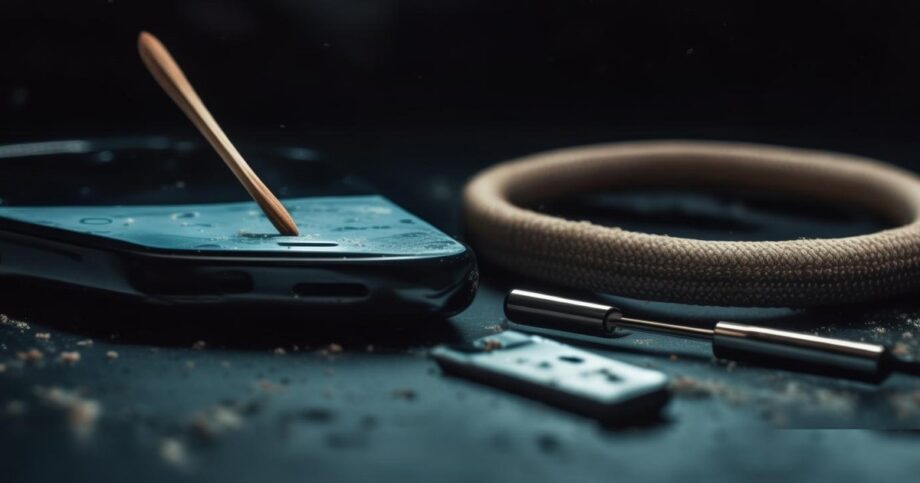
The cable wiggles. The phone only charges if you drape the cord over the coffee mug at exactly the right angle. Plug in the cable and it falls out under its own weight. If any of that sounds familiar, you have a loose USB-C port — and you’ve probably already wondered whether the phone, tablet, or laptop is done for.
Here’s the good news first: the majority of “loose port” cases are not a broken port at all. They’re a port that’s full of compacted pocket lint, a worn-out cable, or a bent retention hook on a $7 accessory — all fixable at home in ten minutes for free or nearly free. The genuinely damaged port does exist, and this guide covers that road too: how to tell the difference, what a real repair costs, and how to keep the port alive in the meantime. This is the same triage a repair bench runs, minus the labor charge.
The Short Answer
Clean first, blame the cable second, condemn the port last. In a loose-charging complaint, the probability breaks down roughly like this: pocket lint and debris compacted at the bottom of the port (most common by far — it builds up invisibly every time a phone rides in a pocket), a worn cable plug whose retention hooks have fatigued (very common — test it by trying a different cable), and only rarely an actually damaged port: a bent center tongue, cracked solder joints, or a stretched shell from a drop.
The diagnostic sequence costs nothing: shine a light into the port, pick out debris with a wooden or plastic tool, then test with a second known-good cable. If the port grips the new cable firmly, you never had a port problem. If it’s still loose with debris ruled out and two different cables, you’re looking at a hardware repair — and there are good stopgap measures to keep using the device safely while you schedule it.
How USB-C Retention Actually Works (and Why It Fails)
Understanding one piece of mechanical design explains almost every loose-port case: in USB-C, the springy retention hooks are on the cable plug, not inside the port. The port itself is mostly a passive cavity with a thin center tongue carrying the pins. When you plug in, the hooks on the plug snap into recesses in the port shell and hold the connection.
That design has three consequences that matter when things get loose:
- Lint is the silent killer. Debris settles at the bottom of the port and compacts a little more with every insertion. Eventually the plug can’t fully seat — the retention hooks never reach their recesses, the pins barely touch, and you get the classic “charges only at an angle” symptom. The port isn’t worn; it’s full.
- Cables wear out before ports do. The spring hooks fatigue after a few thousand cycles on a cheap cable. A plug that sags in every device it meets is a plug problem — replace the cable, not the device.
- The center tongue is the fragile part. It’s a thin stamped contact structure sitting in the middle of the cavity. Jamming a plug in upside-down, a metal tool, or a bend from a drop can crack it or deform it — that’s the case that actually needs a repair bench.
The USB-C specification rates the connector for 10,000 insertion cycles. At ten plug-ins a day, that’s nearly three years of designed life — but only if the port stays clean and the cables you cycle through it are decent ones.
The Three-Minute Diagnosis
Before touching anything, match your symptom to its most likely cause:
| Symptom | Most likely cause | First move |
|---|---|---|
| Charges only at a certain angle | Compacted lint blocking full seating | Inspect with light, clean the port |
| Cable falls out on its own | Worn retention hooks on the cable plug | Test with a different cable |
| No charge unless you hold pressure on the plug | Debris, or a bent/damaged center tongue | Clean, then inspect the tongue |
| Loose in this device, tight in others | The port shell is stretched or the tongue is worn | Repair evaluation |
| Loose with every cable, every device | That one cable is finished | Replace the cable |
| Data works, charging is intermittent | Marginal pin contact from debris or wear | Clean, retest with a watt-meter cable |
One quick reality check on “my phone charges slowly now”: a partially seated plug can still charge, but at degraded contact and sometimes reduced power. We cover the other causes of slow charging separately in why is my phone charging slow — rule out the port first, because every other fix assumes a solid connection.
Clean the Port: The Safe Procedure
This is the fix that resolves most cases, and it’s free. It’s also where people do the damage that turns a lint problem into a repair bill, so follow the constraints exactly.
What you need
- A bright light — phone flashlight or desk lamp
- A wooden toothpick, or the plastic pick from a flossing kit, or a shot of rolled paper
- Optionally a magnifier and a short burst of compressed air after mechanical cleaning
Step by step
- Power the device off (and for laptops, disconnect the charger). You’re about to put a tool into a live connector; don’t.
- Look first. Angle the port toward the light. Compacted lint looks like a dark gray felt pad at the bottom of the cavity — people routinely mistake it for “the back of the port” and give up. The port is deeper than it looks; that “back wall” is debris.
- Scoop, don’t stab. Slide the toothpick along the cavity wall to the bottom and rake the debris toward the opening with a short upward stroke. Work from one side, then the other. Never pry against the center tongue — it’s the most fragile component in the whole assembly. If you want the full toolkit-grade walkthrough for laptops and docks, see how to clean laptop ports safely.
- Repeat until the cavity bottom looks like clean metal and the tongue sits centered and symmetric. Expect several passes; pocket lint compacts like felt.
- Blow it out with a short burst of compressed air held upright — after the mechanical work, not instead of it. Air alone packs lint tighter; that’s why it comes last.
- Test with a known-good cable. It should seat with a soft click, hold its own weight, and need a deliberate tug to remove.
If cleaning fixed it: congratulations, you just saved a repair invoice. If the port was genuinely clean inside and cables still wobble, read on.
What Not to Do (Each of These Causes Real Damage)
- No metal tools. Sewing needles, safety pins, and SIM ejectors scratch the plating off the contacts and can short adjacent pins. A scratched tongue corrodes and develops exactly the intermittent contact you were trying to fix.
- No bending the tongue “back up” with a blade. The tongue is a precision stamped part; levering it fatigues or snaps it. A snapped tongue means a board-level repair, full stop.
- No superglue, ever, for anything. Gluing a wobbly plug in place is a self-inflicted total loss — the next repair tech has to destroy the port to remove the cable.
- No picking with the cable itself. Wiggling a plug in a dirty port grinds debris into the contacts and fatigues the plug hooks at the same time — the fastest way to convert one problem into two.
- Don’t keep using a plug that heats up. A marginal high-resistance contact under load gets warm. If the plug or the area around the port is hot to the touch, stop using that combination and repair before resuming.
If the Port Is Truly Damaged: Your Realistic Options
When cleaning and a new cable don’t restore a firm connection, the port hardware is at fault. What that means in practice depends on the device:
| Device | Typical fix | Ballpark cost | Notes |
|---|---|---|---|
| Phone / tablet | Port flex replacement | $50–120 | Common, quick job for a bench; data stays intact |
| Laptop | Port re-solder or daughterboard swap | $90–200 | Board-level micro-soldering; choose a shop that shows receipts |
| Handheld (Steam Deck, Switch 2, ROG Ally) | Port replacement | $60–140 | High-wear devices; a known-good shop will have done dozens |
| Dock / hub / charger | Usually replace the unit | Cost of the device | Repair rarely economical on $30–50 accessories |
| Under warranty | Manufacturer service | $0 | Some OEMs treat port wear as accidental damage; ask before self-repairing |
One honesty note: third-party “port repair” quotes that arrive without the device being opened should be treated as estimates. A good bench verifies whether the damage is the port, its solder joints, or charging circuitry before quoting a final number.
Stopgaps That Keep You Running Before the Repair
A loose port doesn’t have to take the device out of service while you wait for an appointment. These are the workarounds that actually hold up:
- Switch to wireless charging on phones. A basic pad like the 3-in-1 wireless charger ($15.02) bypasses the port entirely for daily top-ups — reserve the USB-C port for data sync only, and the wear stops accumulating.
- Use a sacrificial connector. A short USB-C connector converter ($21.53) left semi-permanently in the port takes all the insertion wear on a part that costs twenty dollars to replace — the device port stays seated and untouched. The same logic applies to a magnetic tip, which turns every charge into a zero-wear snap-on.
- Reduce leverage with a right-angle or lightweight plug. Most of the mechanical stress on a port comes from the cable’s weight and bends, not insertions. A flexible braided cable with a low-profile plug — like the braided USB-C PD cable ($6.13) or the 35W braided fast-charge cable ($7.91) — hangs off the port with a fraction of the torque of a stiff house-brand cable.
- Verify the fix with a watt readout. After cleaning or changing cables, a cable with a live power display like the OOZCC LCD watt-meter cable ($9.10) shows the actual negotiated wattage in real time — the fastest way to confirm the connection is solid instead of marginal.
Prevention: Make the Next Port Outlive the Device
Ports die from three things: debris, strain, and cheap cables. All three are controllable:
- Unplug by the plug, never by the cable. Pulling the cord yanks the plug out at an angle and levers the port shell over time. It feels faster; it’s how stretched shells happen.
- Keep the pocket side clean. Phones that share a pocket with keys, tissues, and crumbs re-foul a cleaned port within weeks. A case with a port cover is overkill for most people; an occasional light check with the flashlight is not.
- Retire cables that feel loose everywhere. A plug that sags in every device has fatigued hooks and is grinding your ports. A $6–9 quality braided cable is cheaper than one repair visit — and good strain relief protects the cable end too, which is its own failure story — see fast charging myths for what actually wears cables and batteries out.
- Dock the devices that live on a desk. A phone or handheld that charges in the same spot every night is a perfect candidate for a wireless pad or a dock — one insertion cycle replaced by zero.
FAQ
Can a loose USB-C port be fixed at home?
Only when the cause is debris or the cable — which is most cases. Clean the port with a wooden or plastic pick, then test with a different cable. If the port itself is bent, cracked, or has failed solder joints, the fix requires opening the device and replacing or re-soldering the connector; that’s bench work, not home work.
How do I know if it’s the cable or the port?
Test the suspect cable in another device, and a different cable in the suspect port. Whichever combination stays loose identifies the culprit. A cable loose everywhere is a $7 fix; a port loose with every cable is a repair.
Is a loose charging port dangerous?
It can become dangerous before it becomes dead: a marginal contact raises electrical resistance, and resistance under load becomes heat. Warm plug housings, discoloration around the port, or a burning smell mean stop using that port now. A loose-but-cool connection is merely annoying; a hot one is a genuine safety issue.
Will warranty cover a worn-out USB-C port?
Depends on the manufacturer’s read. Physical wear and debris damage are often classified as user damage; failed solder joints or a port that loosened under normal use are usually covered. Don’t self-repair a device still under warranty — open the case with the OEM first.
Why does my port work fine after cleaning but loosen again in a month?
Because the debris source is still there. Phones carried in pockets with lint, tissues, or crumbs refill a port fast. Clean the port, then change what shares the pocket with the phone — that combination actually holds.
Does wireless charging fully replace the port?
For daily charging, yes — a 15W pad covers overnight top-ups for most phones. Keep one working cable for data transfers, recovery mode, and travel, and the port’s insertion count drops by roughly 95%.
The Bottom Line
A loose USB-C port is a three-step triage: clean it, swap the cable, then judge the hardware. Shine a light in first — that gray “back wall” is usually felted pocket lint, and ten careful minutes with a wooden toothpick fixes more loose ports than every other measure combined. Test with a second cable before blaming the device, because fatigued plug hooks impersonate port wear perfectly. Only a port that’s clean inside, provably loose with multiple cables, or visibly bent on the tongue needs a repair bench — and even then, a wireless pad or a sacrificial connector keeps the device fully usable while you wait. Keep debris out of the pocket, unplug by the plug, and cycle good braided cables instead of one dead one, and the port will outlast your interest in the device that hosts it.